How to download TikTok photos in 3 steps
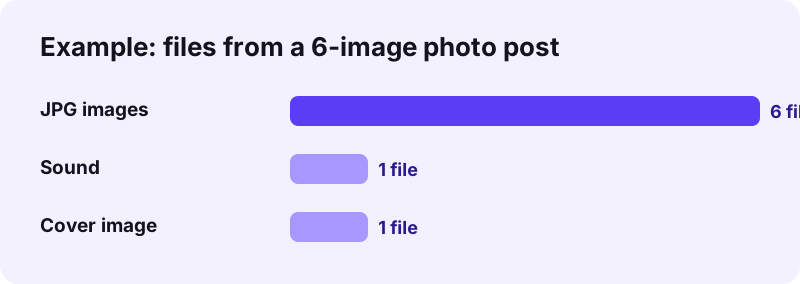
- Copy the link. In TikTok, open the photo post, tap Share and choose Copy link. On a computer, copy the address from the browser bar.
- Paste it into Toltik. Paste the link into the box at the top of this page and press Download. Full links with /photo/ and short vm.tiktok.com or vt.tiktok.com links both work.
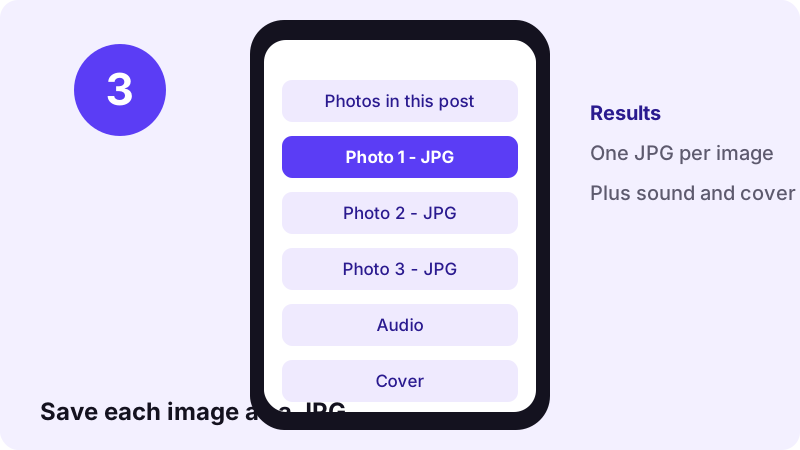
- Save each picture. Toltik lists every image of the slideshow as a separate JPG, plus the sound and the cover. Tap Download under each file you want to keep.
What a TikTok photo downloader does
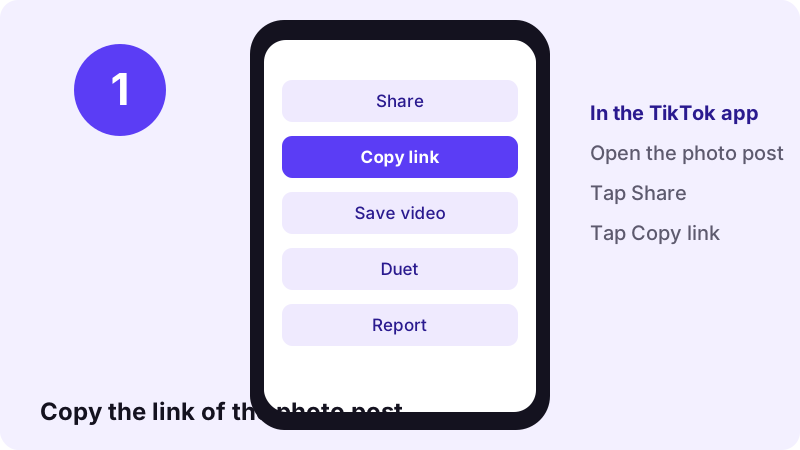
A TikTok photo downloader saves the pictures of a TikTok photo post to your phone or computer. Toltik reads the public post you paste and lists every image of the slideshow as its own JPG file. You also get the sound that plays behind the images and the cover picture.
TikTok calls these posts photo mode. People also say TikTok slideshow, photo carousel or TikTok carousel. They are all the same thing: a set of still images you swipe through, with a sound on top. The link of such a post usually contains /photo/ followed by a long number.
- Every image as a separate JPG download, in the order of the post.
- The sound of the post as an audio file (MP3 or M4A, as TikTok stores it).
- The cover image of the post.
- Works in any browser: no app, no account, no sign-up, free.
What you get from one photo post
When you paste a photo link, Toltik shows a list of files instead of a video player. Each file has its own Download button, so you can keep all of them or only the pictures you like.
| File | Format | What it is |
|---|---|---|
| Each image | JPG | One file per picture in the slideshow |
| Sound | MP3 or M4A | The audio that plays behind the images |
| Cover | JPG | The preview picture shown in the feed |
Before you paste a link, check these points. They save time when a post will not load.
- The post is public and still online.
- The link contains /photo/ or is a short vm.tiktok.com or vt.tiktok.com link.
- You copied the post link, not the link of the creator's profile.
Download links stay valid for one hour. Toltik does not store the images on its own servers, so if a link expires, simply paste the post again to get fresh links.
How to find the link of a photo post
Any public TikTok link works, whether it is long or short. Here is where to find it on each device.
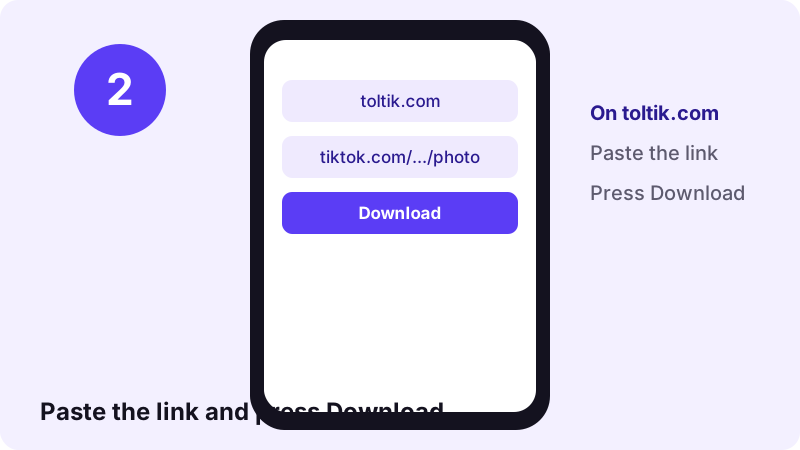
In the TikTok app
- Open the photo post you want to save.
- Tap the Share arrow on the right side.
- Tap Copy link. The link is now on your clipboard.
In a web browser
Open the post on tiktok.com and copy the address from the bar at the top. It looks like tiktok.com/@user/photo/1234…. Paste it into Toltik as it is.
Short links from friends
Links shared in chats often start with vm.tiktok.com or vt.tiktok.com. You do not need to open them first. Toltik follows the short link to the real post and finds the images.
Download TikTok photos on iPhone and iPad
On iPhone and iPad, use Safari or any other browser. Since iOS 13, Safari saves downloaded files to the Files app, in the Downloads folder, not straight to the Photos app.
Save the pictures to Photos
- Paste the link into Toltik and tap Download under each image.
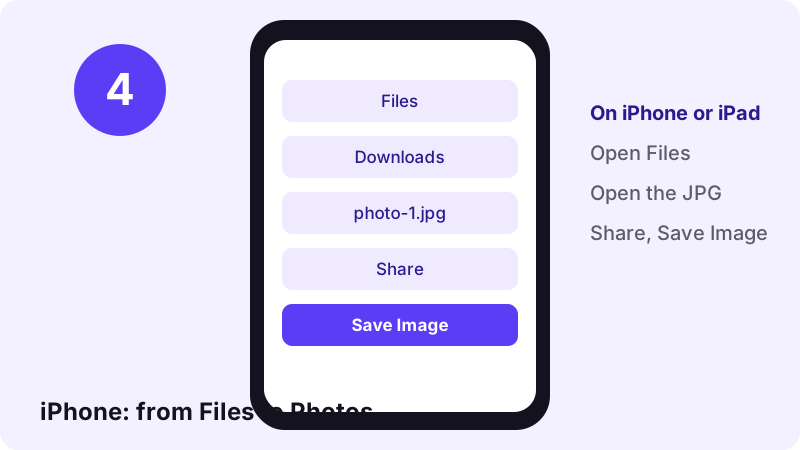
- Open the Files app and go to Downloads.
- Open a JPG, tap the Share button and choose Save Image.
- The picture now appears in the Photos app.
Save several pictures at once
In Files, tap Select, pick all the JPGs from the post, then tap Share and Save Images. This moves the whole slideshow into Photos in one go. You can then delete the copies in Downloads to free space.
Save TikTok pictures on Android
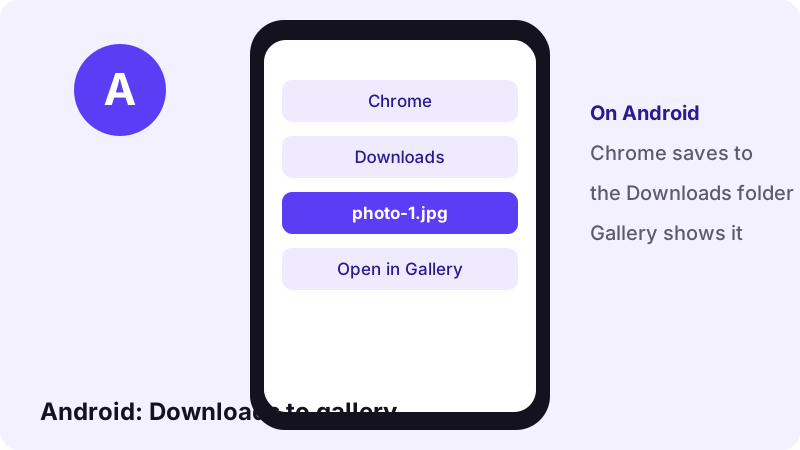
On Android, Chrome saves each file to the Downloads folder. Most gallery apps show that folder, so the images usually appear without any extra step.
Find the images in your gallery
- Open your gallery or Google Photos and look for a Downloads album.
- If you do not see it, open the Files app and tap Downloads.
- Long-press an image there to move it to another album.
Keep a slideshow together
Create an album named after the post and move all of its JPGs there. Because Toltik lists the images in the order of the post, the file numbers keep the original sequence.
Use the TikTok photo downloader on a PC or Mac
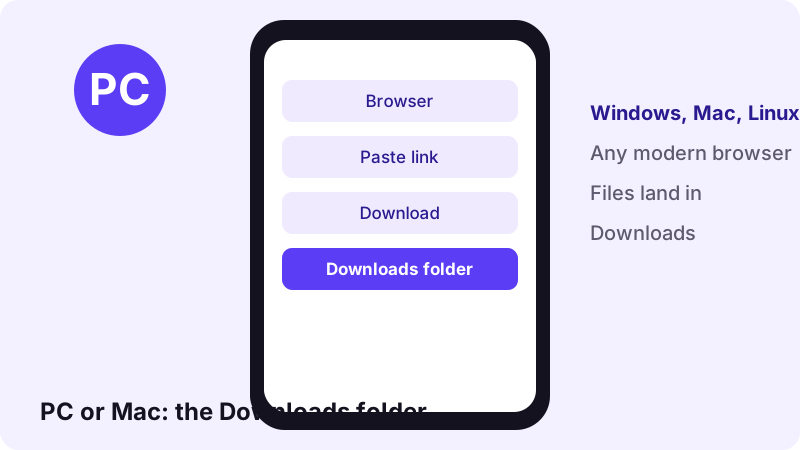
Toltik works the same way on Windows, Mac and Linux. Paste the link, press Download, and save each file from the list.
Windows
Edge, Chrome and Firefox save to the Downloads folder by default. To pick a folder for each file, turn on the browser option that asks where to save files.
Mac
Safari and Chrome save to Downloads. To add the pictures to the Photos app, select the JPGs in Finder and drag them into Photos.
TikTok slideshow download: rebuild it as a video
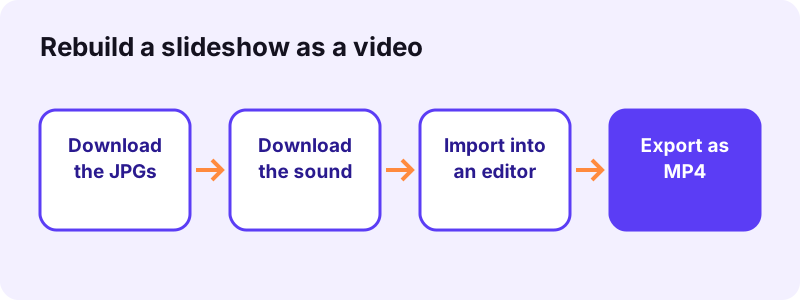
Toltik gives you the parts of a slideshow, not a finished video file. If you want a single video, a TikTok slideshow download is easy to turn into one with any video editor, on a phone or a computer.
The basic steps
- Download every image and the sound from Toltik.
- Open a video editor and start a new project.
- Import the images in order, then add the sound as the audio track.
- Set how long each image stays on screen, then export as MP4.
You do not need special software. Any of these will do the job:
- The video or slideshow editor built into many phones.
- A free video editor app from your phone's app store.
- The basic video editor that comes with Windows or macOS.
- A browser-based video editor, if you prefer not to install anything.
Choose the timing
Divide the length of the sound by the number of images to get a time per image. For example, a 15-second sound and five images gives three seconds each. Shorter times feel faster, like swiping.
Pick the right frame
| Setting | Suggested value | Why |
|---|---|---|
| Aspect ratio | 9:16 (vertical) | Matches how most photo posts are viewed |
| Resolution | 1080 × 1920 | Fits images that are typically 1080 px wide |
| Frame rate | 30 fps | Plenty for still images |
| Transitions | Short or none | Keeps the pictures sharp |
If an image is not vertical, choose fit with a blurred or plain background instead of fill. Fill crops the edges, which can cut off text on the picture.
TikTok carousel or video: how to tell
A TikTok carousel and a video look alike in the feed, but they are saved differently. Check the link before you download.
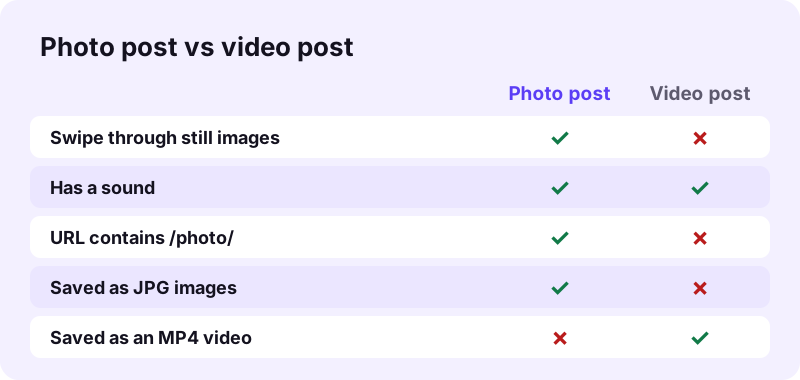
| Photo post (carousel) | Video post | |
|---|---|---|
| Link contains | /photo/ | /video/ |
| What you see | Still images you swipe | Moving video |
| Toltik gives | JPG images, sound, cover | MP4 files and sound |
| Best page | This page | The video downloader on the home page |
You do not need to pick the right page yourself. Paste any link into any Toltik box and it detects the post type. For videos, the TikTok video downloader page explains the MP4 options in detail.
Image quality: what to expect
Toltik does not resize or compress the pictures. You get the JPGs at the resolution TikTok stores, which is typically 1080 pixels wide. The exact size depends on the image the creator uploaded.
Why some images look soft
- The creator uploaded a small or already compressed image.
- The image is a screenshot of another app or a crop of a larger photo.
- TikTok applied its own compression when the post was published.
Get the best copy
- Download from the original post, not from a repost of it.
- Save the JPG itself instead of a screenshot of it.
- Do not send the image through chat apps that compress pictures before you edit it.
Can it make images bigger?
No. A downloader can only save what TikTok serves. If you need a larger print, an upscaling tool may help, but it cannot add detail that was never there.
TikTok photo downloader vs screenshots
A screenshot seems quicker, but it saves your screen, not the picture. Here is why saving the files directly gives a cleaner result.
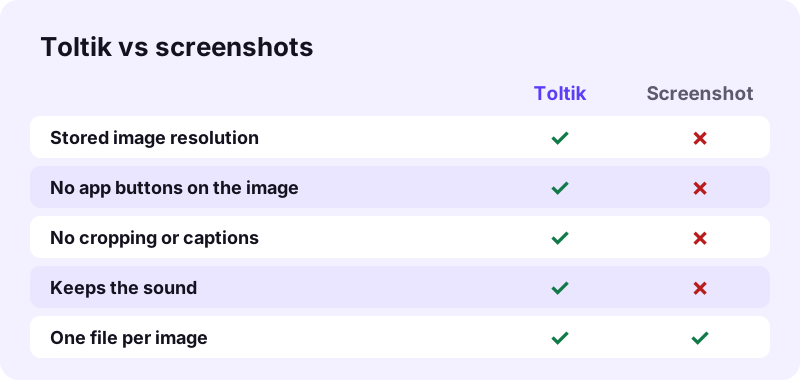
- Screenshots include the like button, caption, username and progress dots.
- Screenshots are cropped to your screen shape and size.
- A screenshot cannot keep the sound of the slideshow.
- With Toltik you save each original JPG with nothing on top.
Troubleshooting a TikTok photo downloader
Most problems come from the link or from the post itself. Use this table to find the cause quickly.
| Problem | Likely cause | What to do |
|---|---|---|
| "We could not read that post" | Post is private, deleted or blocked in your region | Only public, available posts can be saved |
| Only one file appears | The link points to a video, not a photo post | Check that the link contains /photo/ |
| Download link does nothing | The link expired after one hour | Paste the post link again |
| Images open in a new tab | The browser shows JPGs instead of saving them | Long-press or right-click and choose save |
| Image missing in Photos (iPhone) | Safari saved it to Files | Files, Downloads, Share, Save Image |
If nothing in the table matches, run through these quick checks:
- Open the link in the TikTok app to confirm the post still exists.
- Reload the Toltik page and paste the link again.
- Try another browser or switch between Wi-Fi and mobile data.
- Wait a few minutes if TikTok is slow to respond, then retry.
The link will not paste
Make sure you copied the link and not the caption. Tap Copy link again in TikTok, then use the Paste button next to the box.
Some images are missing
Scroll the results list to the end, as long slideshows have many files. If the creator edited the post, paste the link again to get the current set.
Copyright, fair use and photos of people
Saving a picture does not give you the right to reuse it. The images in a TikTok slideshow belong to the creator or to whoever took them. Download your own posts, or posts you have permission to use.
Photos of people
Many slideshows show real people, sometimes children. Do not repost these images, edit them into new content or use them to identify someone. Respect the privacy of the people in the pictures, even when the post is public.
Credit the creator
- Ask the creator before you repost a slideshow.
- Name the creator's account when you share their work.
- Do not remove signatures or text from their images.
- Personal use, such as saving a recipe or a travel tip, is the safest use.
Fair use rules differ from country to country, and commentary or teaching use is judged case by case. If you own a picture that was shared without your consent, see our DMCA page.
Other Toltik tools
Need only the music of a slideshow? The TikTok MP3 downloader saves the sound of any post. To keep a public story before it disappears after 24 hours, use the TikTok story downloader. For regular videos without the watermark, start on the home page.
Frequently asked questions
Is this TikTok photo downloader free?
Yes. Toltik is free, needs no account and has no limit on the number of downloads.
Can I download all the images of a slideshow at once?
Toltik lists every image as a separate JPG with its own Download button. Save each one, then select them together in Files or your gallery to move them as a group.
What format are the downloaded photos?
Each image is a JPG. The sound comes as MP3 or M4A, depending on how TikTok stores it, and the cover is also a JPG.
What resolution are the images?
You get the resolution TikTok stores, typically 1080 pixels wide. Toltik does not resize or compress them.
Does Toltik turn a slideshow into a video?
No. It gives you the images and the sound. Any video editor can put them together into an MP4 in a few minutes.
Why do the pictures not show up in Photos on my iPhone?
Safari saves downloads to the Files app. Open Files, then Downloads, open the JPG, tap Share and choose Save Image.
Can I save pictures from a private account?
No. Toltik only reads public posts. Private, deleted and region-blocked posts cannot be downloaded.
Does the creator know I saved their photos?
Toltik does not notify anyone and does not keep a history of the links you paste. Still, ask the creator before reusing their pictures.
Do I need to install an app?
No. Toltik runs in the browser on iPhone, iPad, Android, Windows, Mac and Linux.
Is Toltik an official TikTok tool?
No. Toltik is an independent tool and is not affiliated with TikTok or ByteDance.